


Omschrijving van de functionaliteit
De IBAN check is een handig hulpmiddel waarmee je een extra controle inbouwt tijdens het valideren van een factuur. Met behulp van deze functionaliteit is een dubbele handmatige controle verleden tijd, reduceer je fouten en bespaar je tijd.
Blue10 vergelijkt met de IBAN check het herkende IBAN nummer op het document met een IBAN nummer uit het boekhoudsysteem. Zorg er daarom altijd voor dat de data op de leverancierskaart in het boekhoudsysteem actueel is en het juiste IBAN nummer van de leverancier is ingevuld.
Blue10 koppelt niet het herkende IBAN nummer terug aan het boekhoudsysteem. Vanuit Blue10 wordt er geen signaal gegeven dat dit het IBAN nummer is waaraan betaald moet worden. Het boekhoudsysteem bepaalt uiteindelijk aan welk IBAN nummer wordt betaald op basis van het ingestelde IBAN nummer in het boekhoudsysteem.
Beheerdersrechten nodig?
Nee
Hoe werkt de functionaliteit?
Wil je ook met de IBAN nummer check werken? Neem contact op met onze Customer support om gebruik te maken van de IBAN check. Wij stellen dit dan voor je in.
Benieuwd welk IBAN nummer is ingesteld? In Blue10 zijn er twee manieren om dit te achterhalen:
1. Klik op Valideren of Importeren > Valideren. Naast het veld Leverancier staat een i’tje. Klik op het i’tje om het IBAN nummer te tonen van de leverancier.
2. Klik op Beheer > Leveranciers. Klik op een leverancier om het IBAN nummer te tonen.
Tijdens het valideren herkent Blue10 het IBAN nummer welke op het document staat. Dit IBAN nummer wordt vervolgens gevuld in het veld IBAN. Na het opslaan in het valideerscherm checkt Blue10 of het herkende IBAN nummer van de factuur overeenkomt met het IBAN nummer in het boekhoudsysteem. Indien dit niet overeenkomt, krijgt de factuur de status Controleer Masterdata. Op deze manier weet je dat de gegevens niet gelijk aan elkaar zijn.
Wat moet ik doen als het IBAN nummer niet overeenkomt?
Volg de volgende stappen als de factuur de status Controleer masterdata heeft:
1. Ga in het menu naar Inkoop. Filter in het factuuroverzicht op Laatste actie is Controleer masterdata.
2. Open de betreffende factuur. In de Historie van de factuur staat dan de volgende melding:
3. Open het boekhoudsysteem en voeg het nieuwe IBAN nummer toe aan de leverancierskaart.
Vervolgens voer je in Blue10 de actie Masterdata gecontroleerd naar Inkoopadministratie uit voor verdere verwerking van de factuur.
Afhankelijk van de inrichting van de workflow boekt Blue10 dan de factuur met behulp van een autoroute.
Heb je hier vragen over?
Stuur een e-mail naar support@blue10.com of bel naar +31 88 2583101
----------------------------------------------
Description of the functionality
The IBAN check is a handy tool that allows you to build in an extra check when validating an invoice. With this functionality, double manual checks are a thing of the past, reducing errors and saving you time.
Blue10 uses the IBAN check to compare the recognised IBAN number on the document with an IBAN number from the accounting system. Therefore, always ensure that the data on the supplier card in the accounting system is up to date and that the correct IBAN number for the supplier has been entered.
Blue10 does not link the recognised IBAN number back to the accounting system. Blue10 does not indicate that this is the IBAN number to which payment should be made. The accounting system ultimately determines which IBAN number to pay based on the IBAN number set in the accounting system.
Do you need administrator rights?
No
How does the functionality work?
Would you also like to work with the IBAN number check? Contact our Customer Support to use the IBAN check. We will then set this up for you.
Curious about which IBAN number is set? In Blue10, there are two ways to find this out:
1. Click on Validate or Import > Validate. There is an “i” next to the Supplier field. Click on the “i” to display the supplier's IBAN number.
2. Click on Manage > Suppliers. Click on a supplier to display the IBAN number.
During validation, Blue10 recognises the IBAN number on the document. This IBAN number is then entered in the IBAN field. After saving in the validation screen, Blue10 checks whether the recognised IBAN number on the invoice matches the IBAN number in the accounting system. If they do not match, the invoice is given the status Check Master Data. This lets you know that the data does not match.
What should I do if the IBAN number does not match?
Follow these steps if the invoice has the status Check Master Data:
1. Go to Purchasing in the menu. Filter the invoice overview by Last action is Check Master Data.
2. Open the relevant invoice. The following message will appear in the invoice's History: 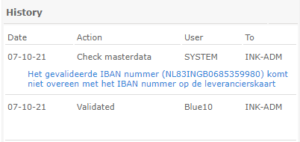
3. Open the accounting system and add the new IBAN number to the supplier card.
4. Then, in Blue10, perform the action Master data checked to Purchase administration for further processing of the invoice.
Depending on the workflow setup, Blue10 will then post the invoice using an auto route.
Do you have any questions about this?
Send an email to support@blue10.com or call +31 88 2583101.